> ## Documentation Index
> Fetch the complete documentation index at: https://docs.elateuk.com/llms.txt
> Use this file to discover all available pages before exploring further.
# Roles and permissions
> See the eight roles in Elate, what each can do by default, how to change it in Settings > Permissions, and the rules that always apply.
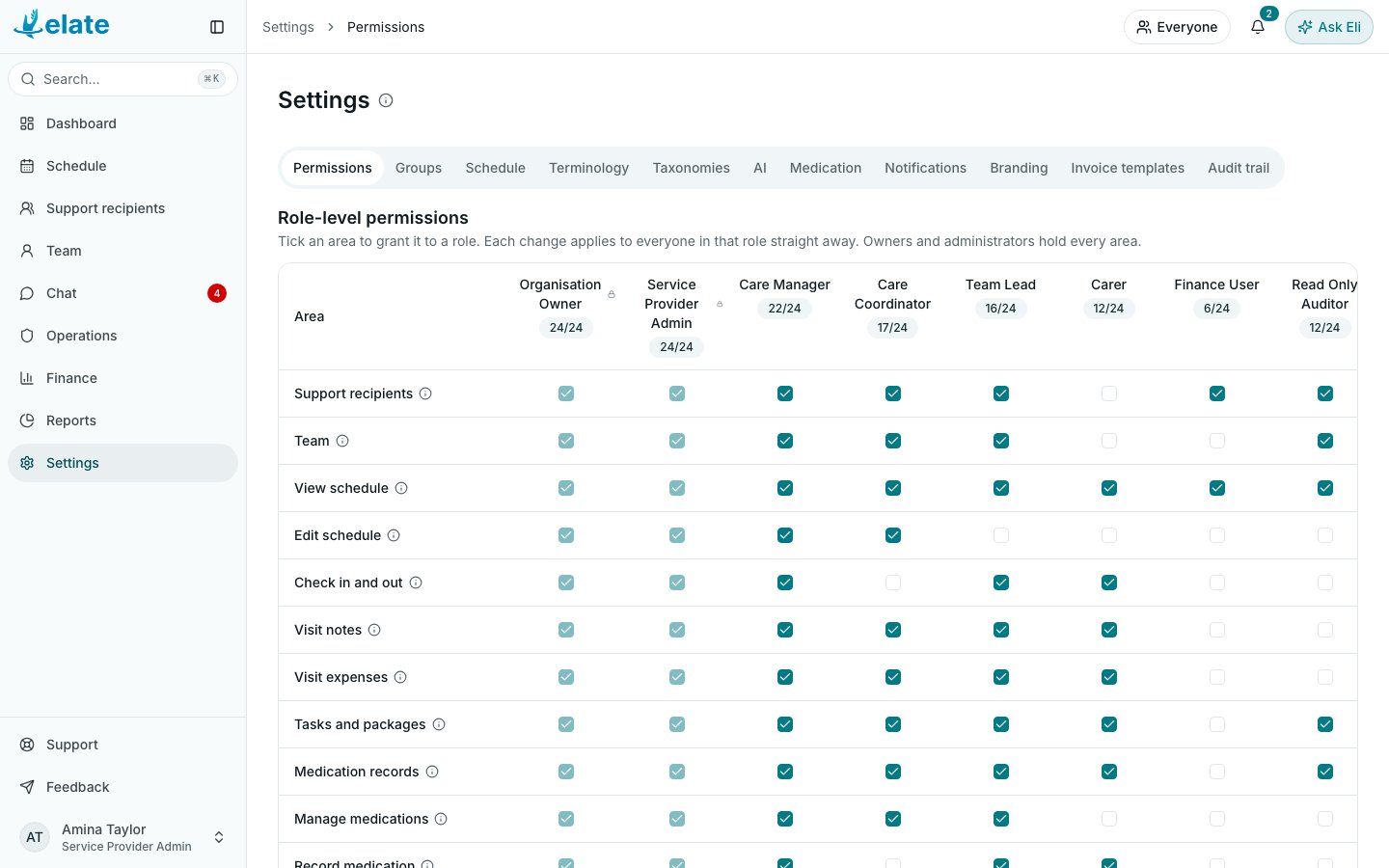
Everyone in your organisation has one role. The role decides which areas of Elate they can see and use. Your organisation can change what each role can do, area by area, in **Settings > Permissions**.
**Who can do this:** Organisation Owners and Service Provider Admins can change permissions. Care Managers can too, once their role has the **Settings** area, which it does not have by default. Anyone else with **Settings** sees the matrix but cannot change it.
Your organisation may use different words for some things, such as "Service users" instead of "Support recipients". Elate shows your organisation's words everywhere, so follow what you see.
 ## The eight roles
| Role | By default |
| - | - |
| Organisation Owner | Every area, always. The person who creates the organisation is its first owner. |
| Service Provider Admin | Every area, always. |
| Care Manager | Every area except **Finance** and **Settings**. |
| Care Coordinator | Plans and edits the schedule, and manages support recipients, the team and support planning. No check-in, medication recording, safeguarding, documents, finance, settings or audit. |
| Team Lead | Sees the schedule, support recipients and the team, checks in and records care, including incidents and safeguarding. Cannot edit the schedule, open finance or reports, or change settings. |
| Carer | The visits they are on: check in and out, notes, expenses, tasks, incidents, documents, assessments and chat. |
| Finance User | Finance and reports, plus support recipients, the schedule, AI features and chat. |
| Read Only Auditor | Views most records, including finance, safeguarding and the audit trail, but can never change anything. |
You can see your own role under your name at the bottom of the sidebar. Your **Account** page lists every permission area your role holds, under **Access**.
## The permission areas
These are the rows in **Settings > Permissions**. Point at the information icon beside a row to see a short description in the app.
| Area | What it allows |
| - | - |
| **Support recipients** | View and manage support recipients. |
| **Team** | View and manage operational team records. |
| **View schedule** | View assigned and permitted schedules. |
| **Edit schedule** | Create, move, resize, cancel and reassign visits. |
| **Check in and out** | Record visit arrival and departure. |
| **Visit notes** | Create care notes and handover notes. |
| **Visit expenses** | Submit visit expenses and mileage. |
| **Tasks and packages** | View and manage reusable tasks and ordered task packages. |
| **Medication records** | View the medication list and the MAR chart. |
| **Manage medications** | Add, change and stop medications and their dose schedules, and correct a recorded dose. |
| **Record medication** | Record a dose as given, refused, omitted or not required, and witness a controlled drug. |
| **Incidents** | Create and review incident records. |
| **Safeguarding** | Create and review safeguarding records. |
| **Documents** | View and upload permitted documents. |
| **Availability** | Manage unavailable time and leave blocks. |
| **Overtime** | Record and approve overtime. |
| **Finance** | Manage contracts, invoices and payments. |
| **Reports** | View operational and finance reports. |
| **Settings** | Manage organisation settings and roles. |
| **Audit** | View sensitive action history. |
| **AI features** | Use Eli, voice dictation and AI drafting. |
| **Assessments** | View a person's assessments, start one from a published template, fill it in, complete it and review it. |
| **Manage assessment templates** | Build, publish, duplicate and archive assessment templates, and remove an assessment. |
| **Chat** | Send and receive encrypted messages with colleagues in your organisation. |
The three medication areas need the **Medication (eMAR)** module, and **AI features** needs the **AI features** module. Without the module, the row shows a note such as **Medication (eMAR) is not in your plan** and cannot be ticked.
## What each role has by default
Organisation Owners and Service Provider Admins hold every area, so they are not shown.
| Area | Care Manager | Care Coordinator | Team Lead | Carer | Finance User | Read Only Auditor |
| - | - | - | - | - | - | - |
| Support recipients | ✓ | ✓ | ✓ | | ✓ | ✓ |
| Team | ✓ | ✓ | ✓ | | | ✓ |
| View schedule | ✓ | ✓ | ✓ | ✓ | ✓ | ✓ |
| Edit schedule | ✓ | ✓ | | | | |
| Check in and out | ✓ | | ✓ | ✓ | | |
| Visit notes | ✓ | ✓ | ✓ | ✓ | | |
| Visit expenses | ✓ | ✓ | ✓ | ✓ | | |
| Tasks and packages | ✓ | ✓ | ✓ | ✓ | | ✓ |
| Medication records | ✓ | ✓ | ✓ | ✓ | | ✓ |
| Manage medications | ✓ | ✓ | ✓ | | | |
| Record medication | ✓ | | ✓ | ✓ | | |
| Incidents | ✓ | ✓ | ✓ | ✓ | | ✓ |
| Safeguarding | ✓ | | ✓ | | | ✓ |
| Documents | ✓ | | | ✓ | | ✓ |
| Availability | ✓ | ✓ | ✓ | | | |
| Overtime | ✓ | ✓ | | | | |
| Finance | | | | | ✓ | ✓ |
| Reports | ✓ | ✓ | | | ✓ | ✓ |
| Settings | | | | | | |
| Audit | ✓ | | | | | ✓ |
| AI features | ✓ | ✓ | ✓ | ✓ | ✓ | |
| Assessments | ✓ | ✓ | ✓ | ✓ | | ✓ |
| Manage assessment templates | ✓ | ✓ | | | | |
| Chat | ✓ | ✓ | ✓ | ✓ | ✓ | |
## Change what a role can do
Select **Settings** in the sidebar. The **Permissions** tab opens first, showing **Role-level permissions**: one row per area and one column per role.
Find the row for the area you want to change. The count under each role, such as 12/24, shows how many areas it holds.
Tick the box where the area's row meets the role's column to give it, or untick it to take it away. There is no Save button: each change applies to everyone in that role straight away.
The **Organisation Owner** and **Service Provider Admin** columns show a padlock and cannot be changed, because those roles always hold every area.
## Rules that always apply
Some things do not follow the matrix:
* **Reports** in the sidebar is only for Organisation Owners and Service Provider Admins, even when another role has **Reports** ticked.
* **Operations** is never shown to Carers. Their own incidents reach them on the dashboard and on the profile of the person concerned.
* A Carer without the **Support recipients** area sees only the people they are connected to, and cannot change their records. A Carer is connected to a person when they are put on one of that person's visits, or when the office adds the connection.
* A Read Only Auditor can never change a record, whatever is ticked.
* Only Organisation Owners, Service Provider Admins and Care Managers can change permissions and send invitations.
* Nobody can give a role they could not hold themselves: an Organisation Owner gives any role and is the only one who gives or removes Organisation Owner; a Service Provider Admin gives any other role; a Care Manager gives **Carer** and any role below Owner and Admin that their own role's permissions cover; anyone else who edits team records gives **Carer** only. Once someone has joined, only an Owner or Admin changes their role. See [Team members](/account/managing-team-members).
* Only Organisation Owners and Service Provider Admins can close or restore someone's account, and see the **Branding**, **Schedule**, **Terminology**, **Notifications**, **Invoice templates**, **AI** and **Medication** tabs in **Settings**.
Roles are not the same as the staff types your subscription is billed on. See [Plans and pricing](/billing/pricing).
## Related pages
* [Team members](/account/managing-team-members)
* [Organisation settings](/settings/organisation-settings)
* [Finding your way around](/getting-started/navigating-elate)
This documentation is built and hosted on [Mintlify](https://mintlify.com), a developer documentation platform.
## The eight roles
| Role | By default |
| - | - |
| Organisation Owner | Every area, always. The person who creates the organisation is its first owner. |
| Service Provider Admin | Every area, always. |
| Care Manager | Every area except **Finance** and **Settings**. |
| Care Coordinator | Plans and edits the schedule, and manages support recipients, the team and support planning. No check-in, medication recording, safeguarding, documents, finance, settings or audit. |
| Team Lead | Sees the schedule, support recipients and the team, checks in and records care, including incidents and safeguarding. Cannot edit the schedule, open finance or reports, or change settings. |
| Carer | The visits they are on: check in and out, notes, expenses, tasks, incidents, documents, assessments and chat. |
| Finance User | Finance and reports, plus support recipients, the schedule, AI features and chat. |
| Read Only Auditor | Views most records, including finance, safeguarding and the audit trail, but can never change anything. |
You can see your own role under your name at the bottom of the sidebar. Your **Account** page lists every permission area your role holds, under **Access**.
## The permission areas
These are the rows in **Settings > Permissions**. Point at the information icon beside a row to see a short description in the app.
| Area | What it allows |
| - | - |
| **Support recipients** | View and manage support recipients. |
| **Team** | View and manage operational team records. |
| **View schedule** | View assigned and permitted schedules. |
| **Edit schedule** | Create, move, resize, cancel and reassign visits. |
| **Check in and out** | Record visit arrival and departure. |
| **Visit notes** | Create care notes and handover notes. |
| **Visit expenses** | Submit visit expenses and mileage. |
| **Tasks and packages** | View and manage reusable tasks and ordered task packages. |
| **Medication records** | View the medication list and the MAR chart. |
| **Manage medications** | Add, change and stop medications and their dose schedules, and correct a recorded dose. |
| **Record medication** | Record a dose as given, refused, omitted or not required, and witness a controlled drug. |
| **Incidents** | Create and review incident records. |
| **Safeguarding** | Create and review safeguarding records. |
| **Documents** | View and upload permitted documents. |
| **Availability** | Manage unavailable time and leave blocks. |
| **Overtime** | Record and approve overtime. |
| **Finance** | Manage contracts, invoices and payments. |
| **Reports** | View operational and finance reports. |
| **Settings** | Manage organisation settings and roles. |
| **Audit** | View sensitive action history. |
| **AI features** | Use Eli, voice dictation and AI drafting. |
| **Assessments** | View a person's assessments, start one from a published template, fill it in, complete it and review it. |
| **Manage assessment templates** | Build, publish, duplicate and archive assessment templates, and remove an assessment. |
| **Chat** | Send and receive encrypted messages with colleagues in your organisation. |
The three medication areas need the **Medication (eMAR)** module, and **AI features** needs the **AI features** module. Without the module, the row shows a note such as **Medication (eMAR) is not in your plan** and cannot be ticked.
## What each role has by default
Organisation Owners and Service Provider Admins hold every area, so they are not shown.
| Area | Care Manager | Care Coordinator | Team Lead | Carer | Finance User | Read Only Auditor |
| - | - | - | - | - | - | - |
| Support recipients | ✓ | ✓ | ✓ | | ✓ | ✓ |
| Team | ✓ | ✓ | ✓ | | | ✓ |
| View schedule | ✓ | ✓ | ✓ | ✓ | ✓ | ✓ |
| Edit schedule | ✓ | ✓ | | | | |
| Check in and out | ✓ | | ✓ | ✓ | | |
| Visit notes | ✓ | ✓ | ✓ | ✓ | | |
| Visit expenses | ✓ | ✓ | ✓ | ✓ | | |
| Tasks and packages | ✓ | ✓ | ✓ | ✓ | | ✓ |
| Medication records | ✓ | ✓ | ✓ | ✓ | | ✓ |
| Manage medications | ✓ | ✓ | ✓ | | | |
| Record medication | ✓ | | ✓ | ✓ | | |
| Incidents | ✓ | ✓ | ✓ | ✓ | | ✓ |
| Safeguarding | ✓ | | ✓ | | | ✓ |
| Documents | ✓ | | | ✓ | | ✓ |
| Availability | ✓ | ✓ | ✓ | | | |
| Overtime | ✓ | ✓ | | | | |
| Finance | | | | | ✓ | ✓ |
| Reports | ✓ | ✓ | | | ✓ | ✓ |
| Settings | | | | | | |
| Audit | ✓ | | | | | ✓ |
| AI features | ✓ | ✓ | ✓ | ✓ | ✓ | |
| Assessments | ✓ | ✓ | ✓ | ✓ | | ✓ |
| Manage assessment templates | ✓ | ✓ | | | | |
| Chat | ✓ | ✓ | ✓ | ✓ | ✓ | |
## Change what a role can do
Select **Settings** in the sidebar. The **Permissions** tab opens first, showing **Role-level permissions**: one row per area and one column per role.
Find the row for the area you want to change. The count under each role, such as 12/24, shows how many areas it holds.
Tick the box where the area's row meets the role's column to give it, or untick it to take it away. There is no Save button: each change applies to everyone in that role straight away.
The **Organisation Owner** and **Service Provider Admin** columns show a padlock and cannot be changed, because those roles always hold every area.
## Rules that always apply
Some things do not follow the matrix:
* **Reports** in the sidebar is only for Organisation Owners and Service Provider Admins, even when another role has **Reports** ticked.
* **Operations** is never shown to Carers. Their own incidents reach them on the dashboard and on the profile of the person concerned.
* A Carer without the **Support recipients** area sees only the people they are connected to, and cannot change their records. A Carer is connected to a person when they are put on one of that person's visits, or when the office adds the connection.
* A Read Only Auditor can never change a record, whatever is ticked.
* Only Organisation Owners, Service Provider Admins and Care Managers can change permissions and send invitations.
* Nobody can give a role they could not hold themselves: an Organisation Owner gives any role and is the only one who gives or removes Organisation Owner; a Service Provider Admin gives any other role; a Care Manager gives **Carer** and any role below Owner and Admin that their own role's permissions cover; anyone else who edits team records gives **Carer** only. Once someone has joined, only an Owner or Admin changes their role. See [Team members](/account/managing-team-members).
* Only Organisation Owners and Service Provider Admins can close or restore someone's account, and see the **Branding**, **Schedule**, **Terminology**, **Notifications**, **Invoice templates**, **AI** and **Medication** tabs in **Settings**.
Roles are not the same as the staff types your subscription is billed on. See [Plans and pricing](/billing/pricing).
## Related pages
* [Team members](/account/managing-team-members)
* [Organisation settings](/settings/organisation-settings)
* [Finding your way around](/getting-started/navigating-elate)
This documentation is built and hosted on [Mintlify](https://mintlify.com), a developer documentation platform.