> ## Documentation Index
> Fetch the complete documentation index at: https://docs.elateuk.com/llms.txt
> Use this file to discover all available pages before exploring further.
# Creating and editing visits
> Create a one-off visit or a group session, choose the tasks and the team member, and change a visit or a whole repeating series later.
Create a visit for one support recipient, or a group session for everyone in a group, then change it later if plans move.
**Who can do this:** anyone whose role includes **Edit schedule**. By default that is Organisation Owners, Service Provider Admins, Care Managers and Care Coordinators. Your organisation can change this in **Settings > Permissions**.
Your organisation may use different words for some things, such as "Service users" instead of "Support recipients". Elate shows your organisation's words everywhere, so follow what you see.
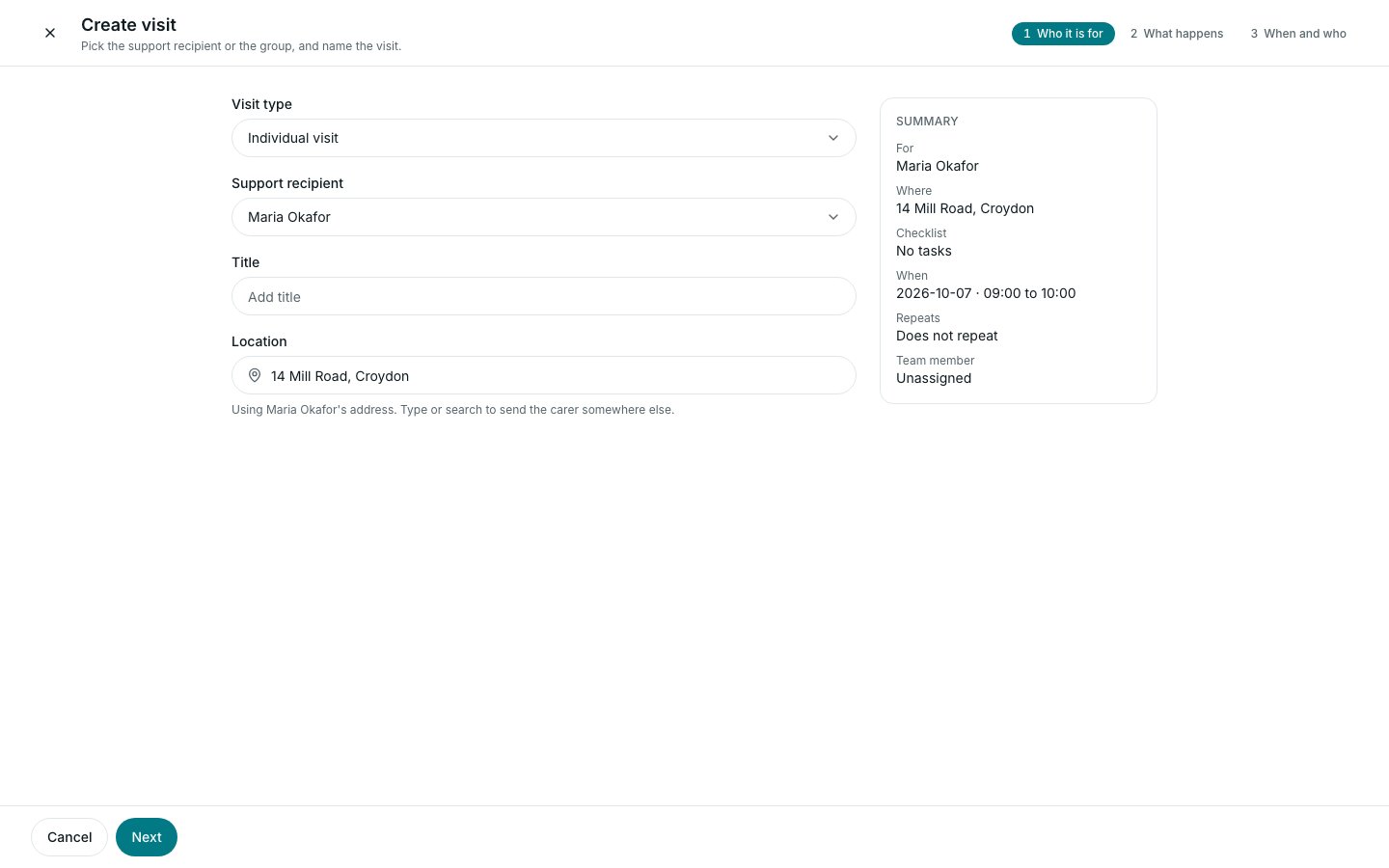 ## Create a visit
In **Schedule**, select **Create visit**. The form opens as a full page in three steps. You can also drag across an empty slot in the **Day** or **Week** view, which fills in the time (and the person, if you dragged in their column).
Leave **Visit type** on **Individual visit** and choose the **Support recipient**. Add a **Title** if you want one; if you leave it blank, Elate names the visit after the person. **Location** shows the person's address. Type or search to send the carer somewhere else for this visit. To go back to the person's address, select **Use (name)'s address**. Select **Next**.
Pick the packages and tasks the carer will tick off on this visit. You can leave it empty, and the visit starts with no checklist. Select **Next**.
Set **When**: the date, the start time and the end time. An end time earlier than the start runs into the next day. Leave **Repeats** on **Does not repeat** for a one-off visit (see [Repeating visits](/schedule/repeating-visits)). Choose the **Team member**, or leave it on **Unassigned**. Tick **Handover required** if the carer must leave a handover for the next visit.
Select **Create visit**. Elate shows **Visit created** and takes you back to the schedule.
On a wide screen, a **Summary** beside the form shows who it is for, where, how many tasks, when, how it repeats and who covers it.
You can also start from a person's profile. On a support recipient's **Schedule** tab, **Create visit** fixes the support recipient and makes an individual visit. On a team member's **Schedule** tab, it fills in the team member.
## Choosing the team member
The **Team member** picker ranks your team for this time slot, using who has seen this person before, availability, skills and travel. It lists **Unassigned** first, then **Best match**, **Good fit**, **Available** and **Unavailable**. Point at the information icon beside **Sort** to see how the groups are decided.
Each name carries short reasons, for example **Preferred carer**, **New to this person**, **Has the required skill**, **Overlaps 1 visit**, **On approved leave**, or how many minutes they are from their previous visit. Use **Sort** to switch between **Best match first**, **Name A to Z** and **Name Z to A**.
Nobody is hidden or blocked: you can still choose someone in **Unavailable**. After you save, Elate may show a **Conflict warning** (the team member already has an overlapping visit) or a **Compliance warning** (their DBS or training has expired). The visit is saved either way.
## Create a group session
A group session books everyone in a group at the same time, for example a day centre session.
In **Create visit**, set **Visit type** to **Group session** and choose the **Group**. Each group shows how many people are in it. Groups are set up in **Settings > Groups** (see [Groups and offices](/team/groups-and-offices)).
Everyone in the session gets the same checklist, so you can only pick organisation-wide tasks and packages. To add something for one person only, open their own visit afterwards.
Set **When**, **Repeats** and the **Team member**, as for a single visit.
Select **Create group session** (or **Create repeating group sessions** if it repeats).
Elate creates one visit for each support recipient in the group, all at the same time with the same team member. Each one can then be opened and changed on its own. A group with nobody in it cannot be used.
## Edit a visit
Select the visit on the schedule to open the visit sheet.
**Edit visit** is at the bottom of the sheet. It is not shown on a completed or cancelled visit.
Change the **Title**, **When**, **Team member**, **Location** or **Handover required**. For a repeating visit you can also change **Repeats**.
Select **Save changes**. For a one-off visit, Elate shows **Visit updated**.
### Editing a repeating visit
When the visit is part of a repeating series, saving asks which visits to change:
* **This visit**: only the one you opened.
* **This and following visits**: this one and every later one in the series.
* **All visits**: every visit in the series.
Some changes limit the choice. If you change the repeat pattern, only **This and following visits** is offered. If you move the visit to another date, **All visits** is not offered. Select **Save** to apply.
## Quick changes from the visit sheet
* **Change the team member**: on the **Overview** tab, under **Assigned to**, select **Assign** or **Change**. For a visit with two team members, use **Edit visit** instead.
* **Change the tasks**: on the **Tasks** tab, select **Edit checklist** (or **Add tasks**). See [The visit sheet on the web](/schedule/the-visit-sheet).
* **Move it**: drag it on the calendar. See [Using the schedule](/schedule/using-the-schedule).
## Related pages
* [Repeating visits](/schedule/repeating-visits)
* [Cancelling, restoring and deleting visits](/schedule/cancelling-and-deleting-visits)
* [Support planning](/support-recipients/support-plans)
* [Bank holidays and travel time](/schedule/bank-holidays-and-travel-time)
This documentation is built and hosted on [Mintlify](https://mintlify.com), a developer documentation platform.
## Create a visit
In **Schedule**, select **Create visit**. The form opens as a full page in three steps. You can also drag across an empty slot in the **Day** or **Week** view, which fills in the time (and the person, if you dragged in their column).
Leave **Visit type** on **Individual visit** and choose the **Support recipient**. Add a **Title** if you want one; if you leave it blank, Elate names the visit after the person. **Location** shows the person's address. Type or search to send the carer somewhere else for this visit. To go back to the person's address, select **Use (name)'s address**. Select **Next**.
Pick the packages and tasks the carer will tick off on this visit. You can leave it empty, and the visit starts with no checklist. Select **Next**.
Set **When**: the date, the start time and the end time. An end time earlier than the start runs into the next day. Leave **Repeats** on **Does not repeat** for a one-off visit (see [Repeating visits](/schedule/repeating-visits)). Choose the **Team member**, or leave it on **Unassigned**. Tick **Handover required** if the carer must leave a handover for the next visit.
Select **Create visit**. Elate shows **Visit created** and takes you back to the schedule.
On a wide screen, a **Summary** beside the form shows who it is for, where, how many tasks, when, how it repeats and who covers it.
You can also start from a person's profile. On a support recipient's **Schedule** tab, **Create visit** fixes the support recipient and makes an individual visit. On a team member's **Schedule** tab, it fills in the team member.
## Choosing the team member
The **Team member** picker ranks your team for this time slot, using who has seen this person before, availability, skills and travel. It lists **Unassigned** first, then **Best match**, **Good fit**, **Available** and **Unavailable**. Point at the information icon beside **Sort** to see how the groups are decided.
Each name carries short reasons, for example **Preferred carer**, **New to this person**, **Has the required skill**, **Overlaps 1 visit**, **On approved leave**, or how many minutes they are from their previous visit. Use **Sort** to switch between **Best match first**, **Name A to Z** and **Name Z to A**.
Nobody is hidden or blocked: you can still choose someone in **Unavailable**. After you save, Elate may show a **Conflict warning** (the team member already has an overlapping visit) or a **Compliance warning** (their DBS or training has expired). The visit is saved either way.
## Create a group session
A group session books everyone in a group at the same time, for example a day centre session.
In **Create visit**, set **Visit type** to **Group session** and choose the **Group**. Each group shows how many people are in it. Groups are set up in **Settings > Groups** (see [Groups and offices](/team/groups-and-offices)).
Everyone in the session gets the same checklist, so you can only pick organisation-wide tasks and packages. To add something for one person only, open their own visit afterwards.
Set **When**, **Repeats** and the **Team member**, as for a single visit.
Select **Create group session** (or **Create repeating group sessions** if it repeats).
Elate creates one visit for each support recipient in the group, all at the same time with the same team member. Each one can then be opened and changed on its own. A group with nobody in it cannot be used.
## Edit a visit
Select the visit on the schedule to open the visit sheet.
**Edit visit** is at the bottom of the sheet. It is not shown on a completed or cancelled visit.
Change the **Title**, **When**, **Team member**, **Location** or **Handover required**. For a repeating visit you can also change **Repeats**.
Select **Save changes**. For a one-off visit, Elate shows **Visit updated**.
### Editing a repeating visit
When the visit is part of a repeating series, saving asks which visits to change:
* **This visit**: only the one you opened.
* **This and following visits**: this one and every later one in the series.
* **All visits**: every visit in the series.
Some changes limit the choice. If you change the repeat pattern, only **This and following visits** is offered. If you move the visit to another date, **All visits** is not offered. Select **Save** to apply.
## Quick changes from the visit sheet
* **Change the team member**: on the **Overview** tab, under **Assigned to**, select **Assign** or **Change**. For a visit with two team members, use **Edit visit** instead.
* **Change the tasks**: on the **Tasks** tab, select **Edit checklist** (or **Add tasks**). See [The visit sheet on the web](/schedule/the-visit-sheet).
* **Move it**: drag it on the calendar. See [Using the schedule](/schedule/using-the-schedule).
## Related pages
* [Repeating visits](/schedule/repeating-visits)
* [Cancelling, restoring and deleting visits](/schedule/cancelling-and-deleting-visits)
* [Support planning](/support-recipients/support-plans)
* [Bank holidays and travel time](/schedule/bank-holidays-and-travel-time)
This documentation is built and hosted on [Mintlify](https://mintlify.com), a developer documentation platform.