> ## Documentation Index
> Fetch the complete documentation index at: https://docs.elateuk.com/llms.txt
> Use this file to discover all available pages before exploring further.
# The visit sheet on the web
> Open a visit on the web to check in and out, tick tasks, write care and handover notes, add expenses and reach every other visit action.
Select a visit on the schedule to open its sheet. On a wide screen it opens on the right; on a narrow screen it slides up from the bottom. Everything recorded during a visit happens here.
**Who can do this:** anyone whose role includes **View schedule** can open a visit (every role by default). Recording needs more:
* **Check in and out**: to check in and out of a visit you are assigned to, and to tick tasks. By default that is Organisation Owners, Service Provider Admins, Care Managers, Team Leads and Carers.
* **Check in and out** together with **Edit schedule**: to record on behalf of the assigned team member. By default that is Organisation Owners, Service Provider Admins and Care Managers.
* **Visit notes**: to add notes. **Expenses**: to add expenses. By default both are Organisation Owners, Service Provider Admins, Care Managers, Care Coordinators, Team Leads and Carers.
Your organisation can change this in **Settings > Permissions**.
Your organisation may use different words for some things, such as "Service users" instead of "Support recipients". Elate shows your organisation's words everywhere, so follow what you see.
Carers usually record visits in the Elate Care app. See [Delivering a visit](/carer-app/delivering-a-visit).
 ## What the sheet shows
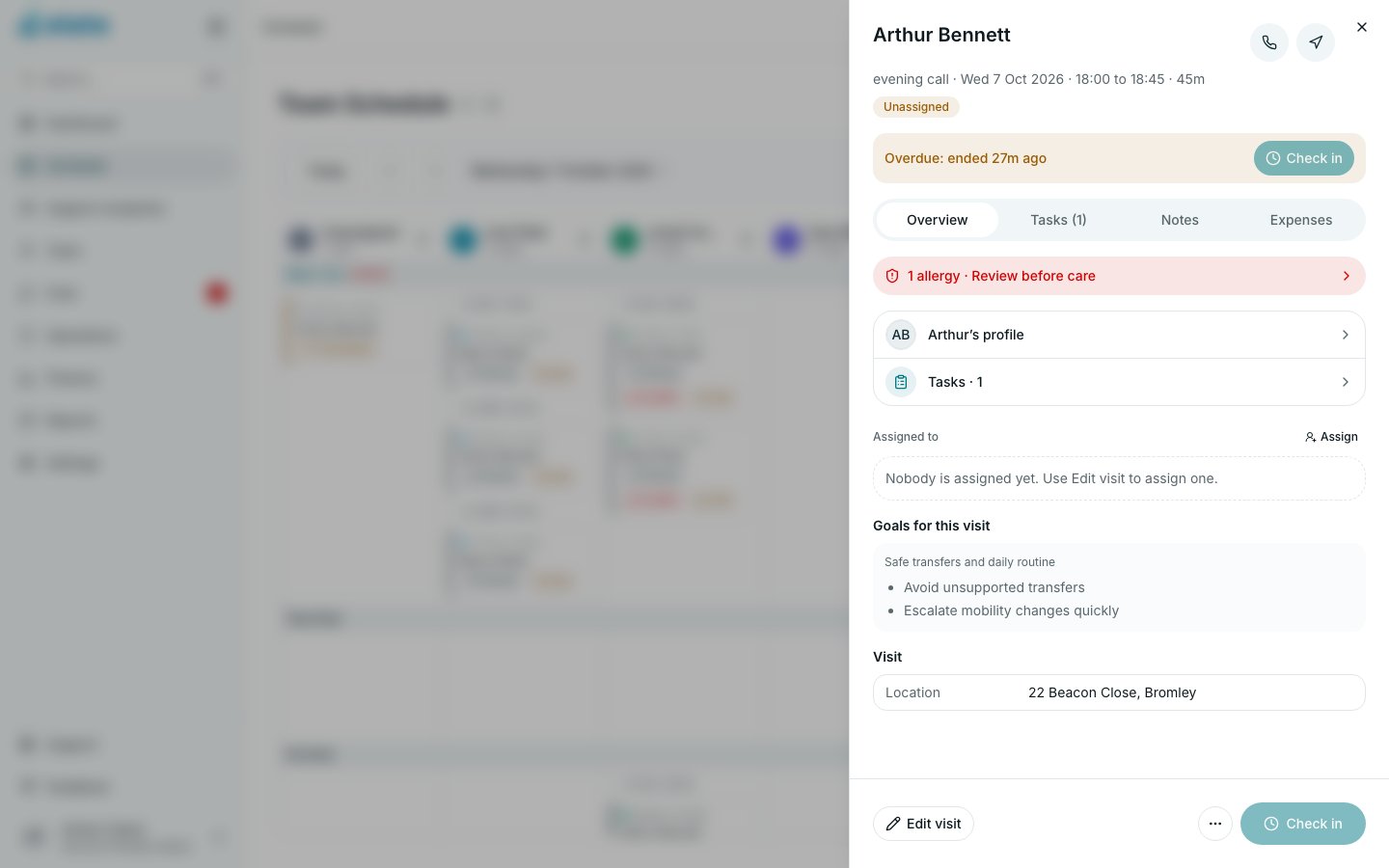
The top of the sheet names the support recipient, with the visit's title, date, time and length, its status, the team member and how it repeats. A **Conflict** badge appears if the team member has an overlapping visit. Buttons let you call the person and get directions when a phone number and address are on record.
On the day of the visit, and once anything has been recorded, a status line below the header says where the visit is, for example "Shift starts in 2h 05m", with **Check in** beside it when you can use it.
The sheet has four tabs: **Overview**, **Tasks**, **Notes** and **Expenses**.
**Overview** shows any handover to read first (**Handover, before you start**), the person's allergies, links to their profile and the tasks, who is **Assigned to** the visit, and facts such as **Location**, **Repeats** and **Handover**.
## Check in
Open the visit and select **Check in**, either in the status line or at the bottom of the sheet.
If something is unusual, Elate asks **Check in anyway?** and tells you why, for example "This visit is not scheduled for today.", "You are not the assigned carer. This records a check-in on their behalf." or "This visit was marked missed. Checking in records a late arrival." Select **Check in anyway** to carry on, or **Back**.
The visit becomes **In progress**. Check-in always records the time you select it, not the scheduled start time.
Your browser may ask to share your location. If you allow it, Elate records where you were (**Arrival location recorded**). If you do not, or it takes too long, you are checked in anyway.
A visit with nobody assigned cannot be checked in: assign a team member first.
## Check out
When the visit is in progress, select **Review and check out**.
**Ready to check out?** shows how many tasks are completed and how many notes are recorded. It also tells you if tasks have no outcome recorded, and suggests adding a care note if there is none.
Select **Check out**. The summary never stops you checking out. The visit becomes **Completed**.
## Tasks
The **Tasks** tab lists the visit's checklist, grouped by category. Tick a task to mark it done. If the carer already recorded a different outcome for it, Elate asks **Mark this task as Done instead?** before replacing it.
Once a visit is completed or cancelled, the checklist is read-only, except for people whose role includes **Edit schedule**.
To change what is on the visit (needs **Edit schedule**):
Select **Edit checklist**, or **Add tasks** if the visit has none.
Choose the packages and tasks the carer should tick off. Tasks the carer has already recorded stay on the visit whatever you pick.
Select **Save checklist**. On a repeating visit, choose **This visit**, **This and following visits** or **All visits**, then **Save**.
If your organisation has the **Medication (eMAR)** module, a read-only **Medication** section sits at the top of **Tasks**. See [Medication (eMAR)](/support-recipients/medication-emar).
## Notes
On the **Notes** tab, select **Add note**.
Choose **Care note**, **Handover** or **Internal**. The Elate Care app offers **Care note** and **Handover** only.
Write the note. If your role can upload documents, you can add an **Attachment (optional)**. Select **Add note**.
* **Handovers carry forward.** A handover note appears on this person's future visits until someone turns it off. The **Notes** tab shows a red dot when there is one. Anyone who can write notes can select **Turn off** on a handover; this cannot be undone.
* **Editing and deleting.** The author can **Edit** or **Delete** their own note for 12 hours. People whose role includes **Edit schedule** can do so at any time. A deleted note is kept on the audit trail.
* **Draft handover with Eli.** When your organisation uses AI features, this button drafts a handover from the person's visit notes from the last three days. The draft opens in the note form for you to check and change before you save it. See [AI settings and your data](/ai/ai-settings-and-your-data).
## Expenses
On the **Expenses** tab, add parking, shopping or other costs, or mileage. An expense can be edited or deleted until it is approved. See [Expenses and mileage](/finance/expenses-mileage).
## More actions
For people whose role includes **Edit schedule**, the bottom of the sheet holds **Edit visit** (see [Creating and editing visits](/schedule/creating-and-editing-visits)) and, on a cancelled visit, **Restore**. The **More visit actions** menu (the three dots) offers:
* **Report an incident** or **Report a safeguarding concern**, if your role allows it. See [Incidents and safeguarding](/support-recipients/incidents-safeguarding).
* **Copy link to this visit**.
* **Cancel visit…** and **Delete visit…**, for people whose role includes **Edit schedule**. See [Cancelling, restoring and deleting visits](/schedule/cancelling-and-deleting-visits).
## Related pages
* [Visits and notes questions](/faqs/visit-and-notes)
* [Using the schedule](/schedule/using-the-schedule)
* [Delivering a visit](/carer-app/delivering-a-visit)
This documentation is built and hosted on [Mintlify](https://mintlify.com), a developer documentation platform.
## What the sheet shows
The top of the sheet names the support recipient, with the visit's title, date, time and length, its status, the team member and how it repeats. A **Conflict** badge appears if the team member has an overlapping visit. Buttons let you call the person and get directions when a phone number and address are on record.
On the day of the visit, and once anything has been recorded, a status line below the header says where the visit is, for example "Shift starts in 2h 05m", with **Check in** beside it when you can use it.
The sheet has four tabs: **Overview**, **Tasks**, **Notes** and **Expenses**.
**Overview** shows any handover to read first (**Handover, before you start**), the person's allergies, links to their profile and the tasks, who is **Assigned to** the visit, and facts such as **Location**, **Repeats** and **Handover**.
## Check in
Open the visit and select **Check in**, either in the status line or at the bottom of the sheet.
If something is unusual, Elate asks **Check in anyway?** and tells you why, for example "This visit is not scheduled for today.", "You are not the assigned carer. This records a check-in on their behalf." or "This visit was marked missed. Checking in records a late arrival." Select **Check in anyway** to carry on, or **Back**.
The visit becomes **In progress**. Check-in always records the time you select it, not the scheduled start time.
Your browser may ask to share your location. If you allow it, Elate records where you were (**Arrival location recorded**). If you do not, or it takes too long, you are checked in anyway.
A visit with nobody assigned cannot be checked in: assign a team member first.
## Check out
When the visit is in progress, select **Review and check out**.
**Ready to check out?** shows how many tasks are completed and how many notes are recorded. It also tells you if tasks have no outcome recorded, and suggests adding a care note if there is none.
Select **Check out**. The summary never stops you checking out. The visit becomes **Completed**.
## Tasks
The **Tasks** tab lists the visit's checklist, grouped by category. Tick a task to mark it done. If the carer already recorded a different outcome for it, Elate asks **Mark this task as Done instead?** before replacing it.
Once a visit is completed or cancelled, the checklist is read-only, except for people whose role includes **Edit schedule**.
To change what is on the visit (needs **Edit schedule**):
Select **Edit checklist**, or **Add tasks** if the visit has none.
Choose the packages and tasks the carer should tick off. Tasks the carer has already recorded stay on the visit whatever you pick.
Select **Save checklist**. On a repeating visit, choose **This visit**, **This and following visits** or **All visits**, then **Save**.
If your organisation has the **Medication (eMAR)** module, a read-only **Medication** section sits at the top of **Tasks**. See [Medication (eMAR)](/support-recipients/medication-emar).
## Notes
On the **Notes** tab, select **Add note**.
Choose **Care note**, **Handover** or **Internal**. The Elate Care app offers **Care note** and **Handover** only.
Write the note. If your role can upload documents, you can add an **Attachment (optional)**. Select **Add note**.
* **Handovers carry forward.** A handover note appears on this person's future visits until someone turns it off. The **Notes** tab shows a red dot when there is one. Anyone who can write notes can select **Turn off** on a handover; this cannot be undone.
* **Editing and deleting.** The author can **Edit** or **Delete** their own note for 12 hours. People whose role includes **Edit schedule** can do so at any time. A deleted note is kept on the audit trail.
* **Draft handover with Eli.** When your organisation uses AI features, this button drafts a handover from the person's visit notes from the last three days. The draft opens in the note form for you to check and change before you save it. See [AI settings and your data](/ai/ai-settings-and-your-data).
## Expenses
On the **Expenses** tab, add parking, shopping or other costs, or mileage. An expense can be edited or deleted until it is approved. See [Expenses and mileage](/finance/expenses-mileage).
## More actions
For people whose role includes **Edit schedule**, the bottom of the sheet holds **Edit visit** (see [Creating and editing visits](/schedule/creating-and-editing-visits)) and, on a cancelled visit, **Restore**. The **More visit actions** menu (the three dots) offers:
* **Report an incident** or **Report a safeguarding concern**, if your role allows it. See [Incidents and safeguarding](/support-recipients/incidents-safeguarding).
* **Copy link to this visit**.
* **Cancel visit…** and **Delete visit…**, for people whose role includes **Edit schedule**. See [Cancelling, restoring and deleting visits](/schedule/cancelling-and-deleting-visits).
## Related pages
* [Visits and notes questions](/faqs/visit-and-notes)
* [Using the schedule](/schedule/using-the-schedule)
* [Delivering a visit](/carer-app/delivering-a-visit)
This documentation is built and hosted on [Mintlify](https://mintlify.com), a developer documentation platform.