

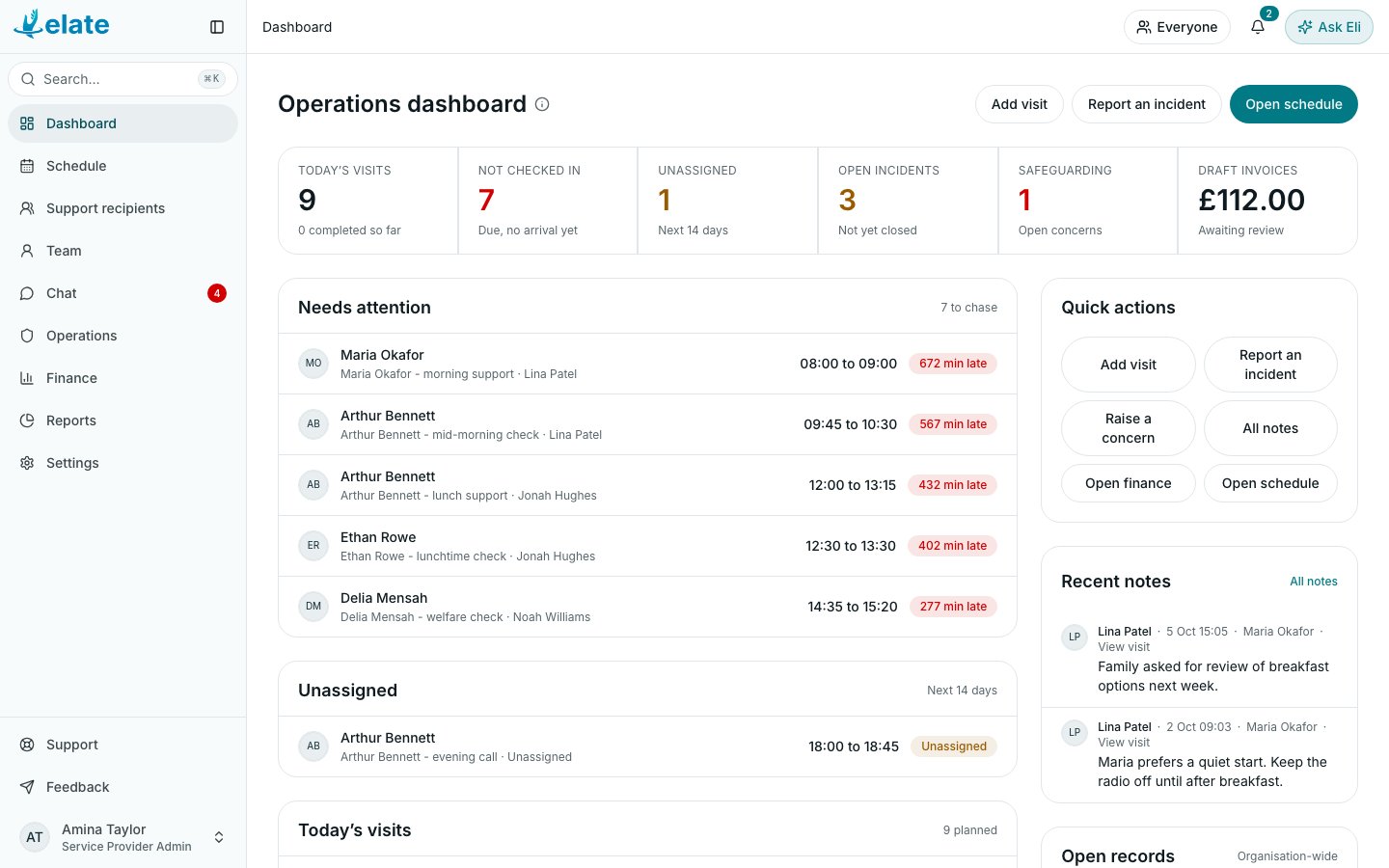
The sidebar
Your organisation can change most of this in Settings > Permissions. See Roles and permissions.
If your organisation is on Elate Free, Finance and Reports show a padlock. You can still open them to see what they offer. Plans and billing are managed under Billing in the profile menu (see below).
To make more room, select the button beside the Elate logo to close the sidebar to a row of icons. Point at the logo and select the same button to open it again.
Search
Select Search… at the top of the sidebar, or press Cmd+K or Ctrl+K, from any page. On a small screen, select the magnifying glass in the top bar. Type into Search Elate… to find support recipients, team members, visits and invoices. Results are grouped by type, and you only find what your role can see.- Choosing a person opens their profile.
- Choosing a visit opens the Schedule.
- Choosing an invoice opens Finance.
The top bar
From left to right, the top bar shows:- Where you are, as a trail of links. Select an earlier part to go back up, for example from a person’s profile to the list.
- Upgrade, for Organisation Owners and Service Provider Admins on Elate Free. It opens Billing.
- The group filter, when your organisation has groups and your role can see support recipients or the team. It shows Everyone until you choose a group, then narrows support recipients, the team, the schedule, reports, operations and the dashboard to that group. Eli always answers for the whole organisation. See Groups and offices.
- Notifications, the bell, with a count of unread items. See Your notifications.
- Ask Eli, which opens the assistant. You can also press Cmd+J or Ctrl+J. It appears when your organisation has AI features and your role includes them. See Ask Eli.
The profile menu
Select your name and role at the bottom of the sidebar (on a small screen, your picture at the top right). The menu has:
Below the menu, the sidebar has two more links:
- Support opens this help centre in a new tab.
- Feedback starts an email to the Elate team at info@elateuk.com.