

A Carer sees only their own visits in the schedule. Most carers use the Elate Care app instead: see My day, People and My week.
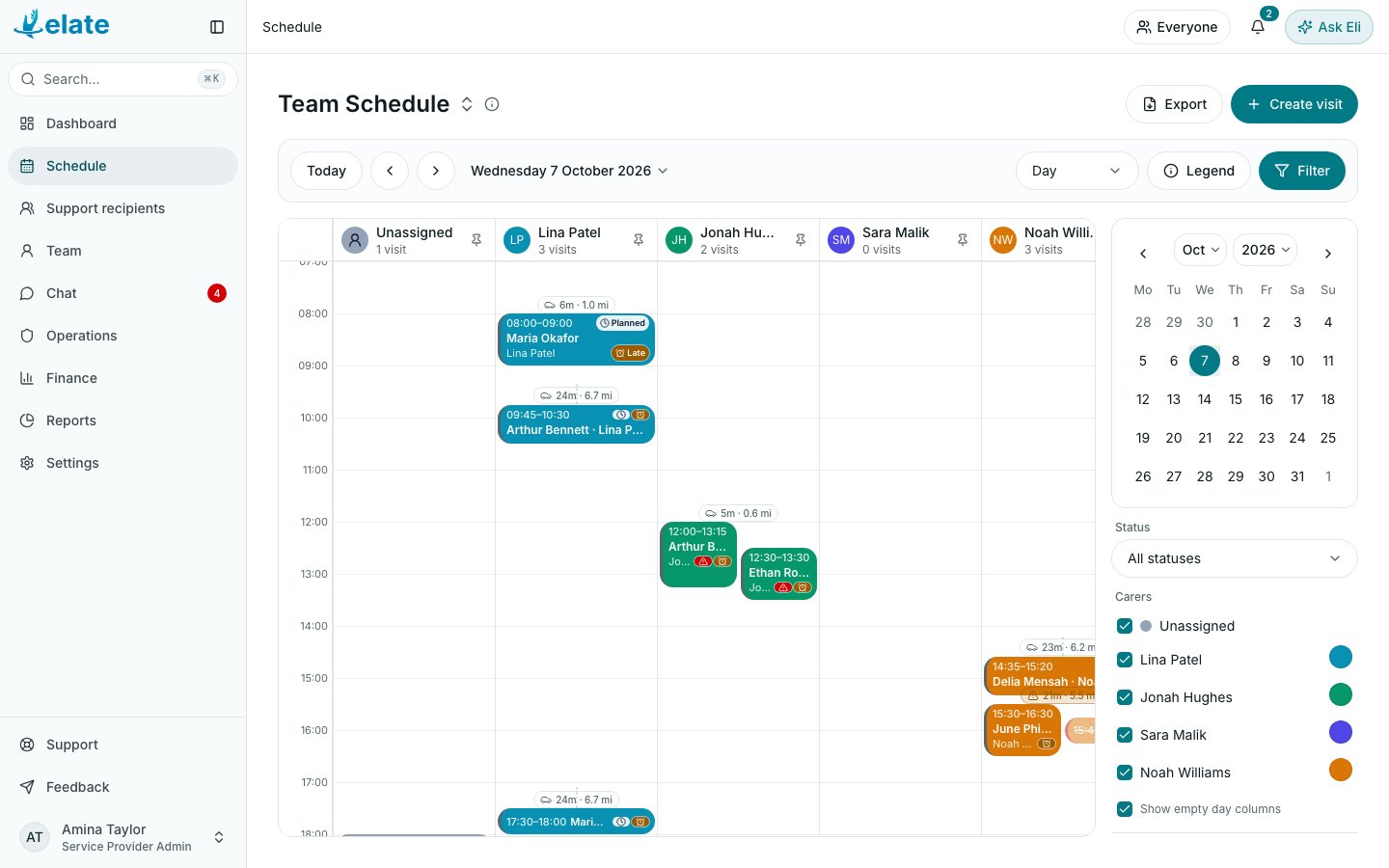
Open the schedule
1
Go to Schedule
In Elate on the web, select Schedule in the sidebar.
2
Pick a date
Use Today, or the arrows beside it to step back and forward. To jump to a date, select the date shown next to the arrows and pick one from the calendar.
3
Choose a view
Open the view menu and pick Agenda, Day, Week, Month or Timeline.
The five views
The time views cover the full 24 hours and open scrolled to 07:00.
Group by team or by support recipient
The page title is also a menu. Select it (it reads Team Schedule or Support recipient Schedule) and choose:- Team: one column per carer, so you can see who is where.
- Support recipient: one column per support recipient, so you can see who visits them.
Read the colours and markers
Select Legend to see what each colour means. Every visit has one status:
Two markers can also appear on a visit:
- Conflict: the same carer has an overlapping visit. Cancelled and missed visits never count as a conflict.
- Late: the visit is planned, its start time has passed and nobody has checked in yet.
Filter what you see
Select Filter to open the filter panel. On a wide screen it sits beside the calendar; on a narrow screen it slides in from the side. In it you can:- pick a date from the small calendar
- choose a Status to show only those visits
- tick or untick people in the Carers (or Support recipients) list, or select Show all
- tick Show empty day columns to include people with nothing booked
- tick Show bank holidays or Show travel time (see Bank holidays and travel time)
Move a visit by dragging
If your role includes Edit schedule, you can change visits straight on the calendar in the Day, Week and Timeline views. Times snap to 15-minute steps.- Move: drag the visit to a new time.
- Change its length: drag the visit’s edge.
- Give it to someone else: in Team grouping, drag the visit into another carer’s column in Day view, or onto another carer’s row in Timeline view. Drop it on Unassigned to take it off a carer.
- Create a visit: in Day or Week view, drag across empty space to start a new visit at that time. Selecting an empty slot without dragging starts a one-hour visit. See Creating and editing visits.