

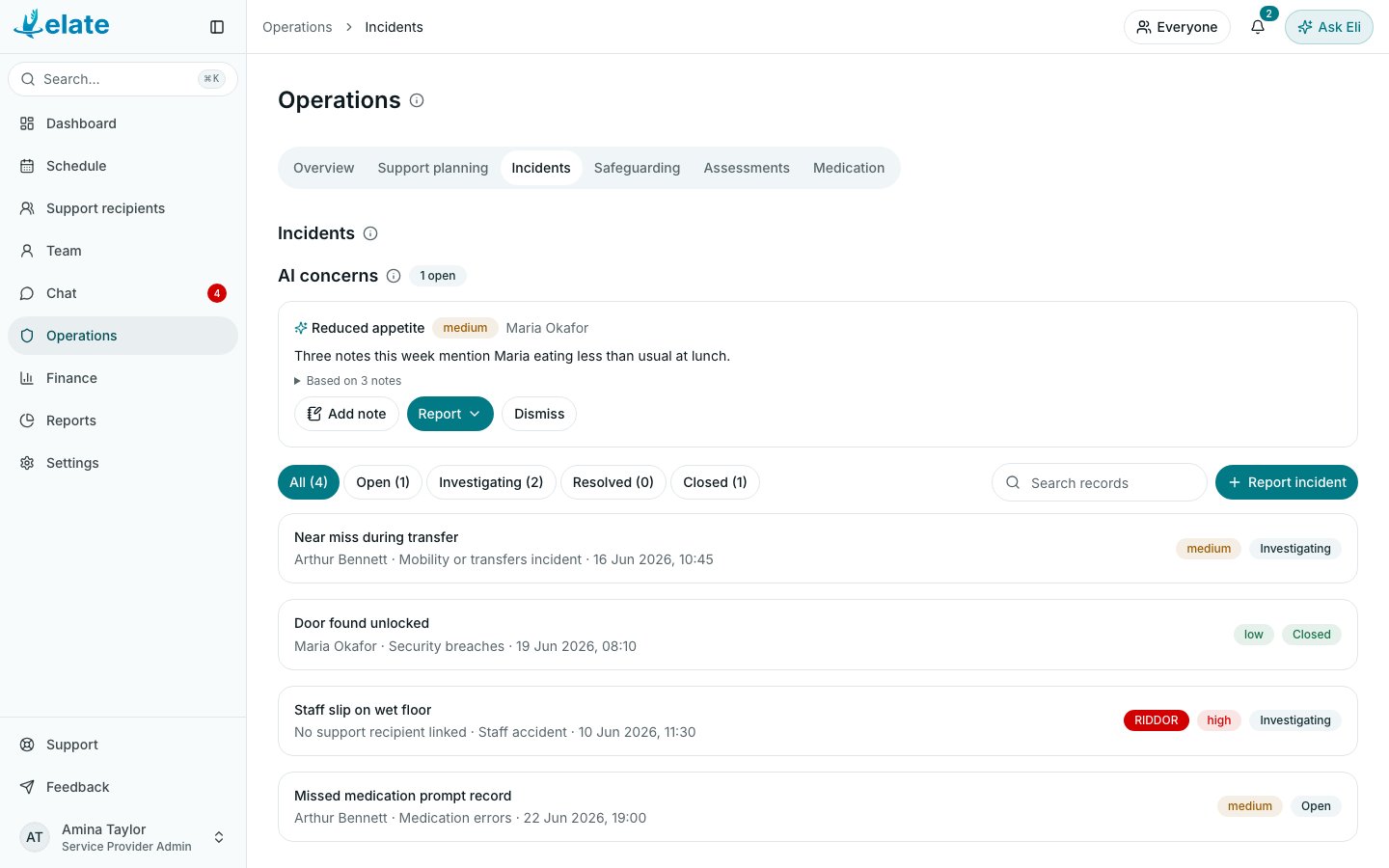
Where records live
- Operations > Incidents and Operations > Safeguarding list every record in your organisation. See Operations overview and overtime.
- A support recipient’s profile has a Reports tab with the records about that person, split into Incidents and Safeguarding for the permissions you hold.
- Carers do not see Operations. A carer sees only the records they raised: on their dashboard under Incidents you have raised, and on the person’s Reports tab.
Report an incident or raise a concern
- On the web
- In the Elate Care app
1
Start the form
Go to Operations > Incidents and select Report incident, or Operations > Safeguarding and select Raise concern. The same buttons are on a person’s Reports tab. From a visit, open the visit sheet, select the three-dot menu and choose Report an incident or Report a safeguarding concern: the person and the visit are filled in for you.
2
Say what happened
Describe it in What happened, in your own words, then add a Subject or title. Both are required.
3
Add the details
Fill in Category, Severity (Minor, Moderate, Major or Catastrophic), Date and time it happened, Location, the Support recipient (called Individual at risk on a safeguarding concern), Linked visit and Immediate actions taken. On an incident, tick Injuries or harm sustained if anyone was hurt.
4
For a safeguarding concern, add the accounts
Choose Details of reportee, then fill in The individual at risk’s own account, Witness account, Have next of kin or carers been notified?, Duty of candour and Any other relevant information. Under People involved, select Add witness or Add alleged person and enter their name, relationship, phone and email.
5
Tick the follow-up actions
Under Follow-up actions completed, tick what has been done. On an incident, the two flags in red (Flag as possible RIDDOR notifiable incident and Flag as possible regulatory notifiable incident) add the record to the statutory tracking described below.
6
Save
Select Report incident or Raise concern.
Find a record
The list has status filters with a count on each: All, Open, Investigating, Resolved and Closed. Type in Search records to search titles, descriptions and locations. A record flagged for RIDDOR or a regulatory notification shows a RIDDOR or Regulatory badge until the notification is recorded.Work on a record
Select a record to open it. It takes the whole page; select Back to incidents or Back to safeguarding to return to the list.- Reported facts shows what was reported, by whom and when.
- Investigation (on an incident) holds Outcome of the investigation and action taken, Root cause, Recommendations, Duty of candour and Any other relevant information. Select Save investigation.
- Safeguarding review (on a safeguarding concern) holds the accounts, Designated lead comments, Follow-up actions, notification details, changes to risk management and to the care package, first aid and hospital details. Select Save review.
- People involved: select Add someone, add a witness or alleged person, then Save people.
- Attachments: select Add document to upload a file.
- Follow-up actions completed: ticking or unticking a box saves straight away.
- Activity lists the history of the record. Type in Add a note to the record and select Add note.
Change the status or close a record
To move a record between Open, Investigating and Resolved, choose the new status in the Status card and select Apply.1
Start closing
Select Close record at the top of the record, or choose Closed in the Status card.
2
Choose the outcome
Pick a Closure outcome: Resolved, Unresolved or No further action.
3
Write the closing note
Summarise the outcome in Closing note. A record cannot be closed without one.
4
Apply
Select Apply. The closing note appears in Activity.
RIDDOR and CQC notifications
The Statutory duties card on each record tracks two notifications: RIDDOR and CQC notification. This section describes what Elate records. Your own policies decide what must be reported and when.- On an incident, each duty reads Not required until you tick its flag.
- When the RIDDOR flag is ticked, Elate shows a due date 10 days after the date and time it happened, and the record’s heading counts down (for example “RIDDOR due in 3 days”, then “RIDDOR overdue”).
- When the regulatory flag is ticked, CQC notification reads Outstanding.
- On a safeguarding concern, CQC notification is always listed and reads Not recorded until you record it.
Export or send a record
- Export PDF downloads the record as a PDF, including the investigation, follow-up actions, notification references and people involved.
- Notify opens Escalate record. Type a Recipient email and select Send to email an alert about the record.
Automatic notifications
By default:- A new safeguarding concern sends an in-app notification and an email to Organisation Owners, Service Provider Admins, Care Managers and Team Leads who hold Safeguarding.
- A new incident sends an in-app notification and an email to Organisation Owners, Service Provider Admins and Care Managers.
- When an incident changes status, the same three roles get an in-app notification.
- A safeguarding concern still Open more than 24 hours after it was raised sends a Safeguarding concern still open notification to Organisation Owners, Service Provider Admins and Care Managers, with one follow-up three days later.
Questions
What is the AI concerns panel above the incidents list?
What is the AI concerns panel above the incidents list?
If your organisation uses AI features, Eli may notice patterns in recent visit notes. Each one appears under AI concerns for you to review: dismiss it with a reason, or raise an incident from it. Nothing enters the care record until you decide.
Can a record be deleted?
Can a record be deleted?
No. A record is closed with an outcome and a closing note, and it can be reopened with a reason. Both stay in the record’s history.
Why can I not see the Safeguarding tab?
Why can I not see the Safeguarding tab?
Your role does not hold Safeguarding. By default Care Coordinators hold Incidents but not Safeguarding. Ask your organisation owner.