

This is not included in Elate Free.
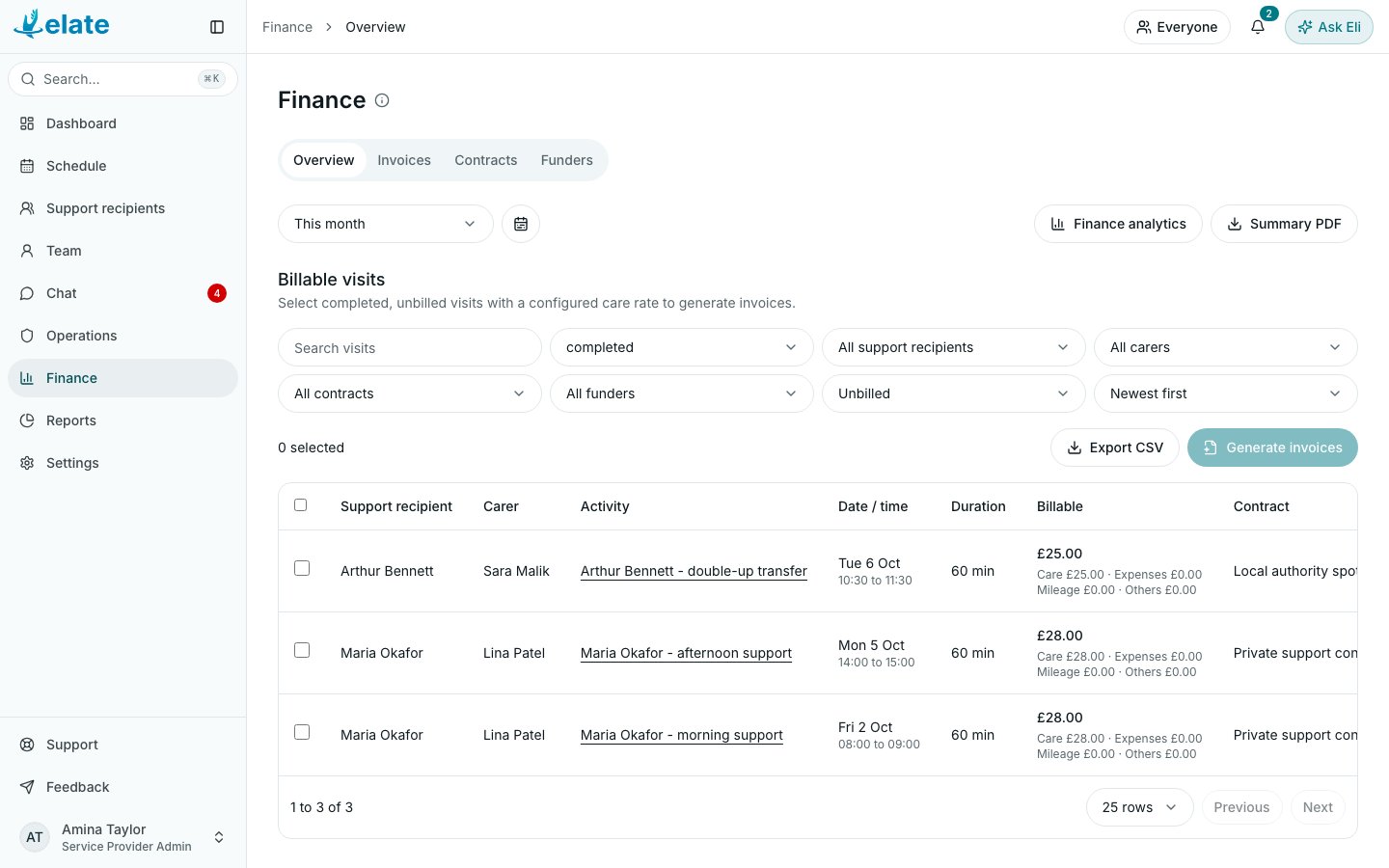
The Finance tabs
Select Finance in the sidebar. The page has four tabs.
An old link or bookmark to a reports tab inside Finance now opens Overview. Finance charts live in Reports.
Review billable visits
1
Open Overview
Go to Finance and select the Overview tab.
2
Choose a date range
Use the date range menu at the top. It starts on This month. You can also pick This week, Last 30 days, This quarter, This year, All time or Custom range…, which opens a calendar.
3
Filter the list
Use the filters above the Billable visits table (see below). Each change takes you back to the first page.
4
Check each row
Look at the Billable amount and the Contract column. A red No care rate badge means the visit cannot be invoiced yet.
Filters
What the table shows
The Billable split works like this:
- Care is the visit priced at its contract rate.
- Expenses is approved parking and shopping expenses marked for the invoice.
- Mileage is approved mileage marked for the invoice.
- Others is approved expenses of the type Other marked for the invoice.
No care rate
Elate prices a visit from the active contract that covers the support recipient on the visit date. No care rate means it found no rate to use: there is no active contract for that person on that date, or the contract has no rate that applies and no fallback hourly rate. Fix the contract and the badge clears. See Contracts and rates.Which visits you can invoice
A visit’s tick box is available only when the visit is completed, not already billed, and has a care rate. Read Only Auditors do not see tick boxes. To start invoicing, tick the visits (the box in the table header selects every eligible visit on the page), then select Generate invoices. The count of selected visits shows on the left. The full steps are in Invoices.Export CSV
Select Export CSV to download the visits that match your filters as a spreadsheet. It includes the amounts, contract, funder, billed status, service name, and check in and check out times. An export holds up to 5,000 rows. If you have more, narrow the filters and export again.Summary PDF and Finance analytics
- Summary PDF opens a branded finance summary for the date range in a new tab. It works for any range, including All time. If the period contains more than one currency, the button is turned off and a message explains why.
- Finance analytics opens Reports. Only Organisation Owners and Service Provider Admins see it, because Reports is theirs.
Finance on a support recipient’s profile
A support recipient’s profile has a Finance tab for people with Finance. It lists their Contracts and Invoices, each linking to its page, and Open finance takes you to the Finance page.Common questions
A completed visit is missing from Overview
A completed visit is missing from Overview
Check the date range and the filters. Overview starts on This month, the Completed status and Unbilled, so a visit from last month, or one already on an invoice, is hidden until you change them.
I cannot tick a visit
I cannot tick a visit
The visit is not completed, is already billed, or shows No care rate. Read Only Auditors cannot tick visits at all.
I cannot see Finance
I cannot see Finance
Your organisation may be on Elate Free, which does not include Finance, or your role may not include Finance. Ask an owner or administrator to grant your role the Finance area in Settings > Permissions.
I do not see Finance analytics
I do not see Finance analytics
The button only shows for Organisation Owners and Service Provider Admins.
Related pages
Invoices
Generate, send and track invoices.
Contracts and rates
Set up the rates that price visits.
Funders and invoice templates
Who you bill, and how invoices look.
Expenses and mileage
How claims reach an invoice.