

Carers see only the support recipients they are connected to, and cannot change their records. In the Elate Care app they find them in the People tab: see My day, People and My week.
Add a support recipient
1
Open the list
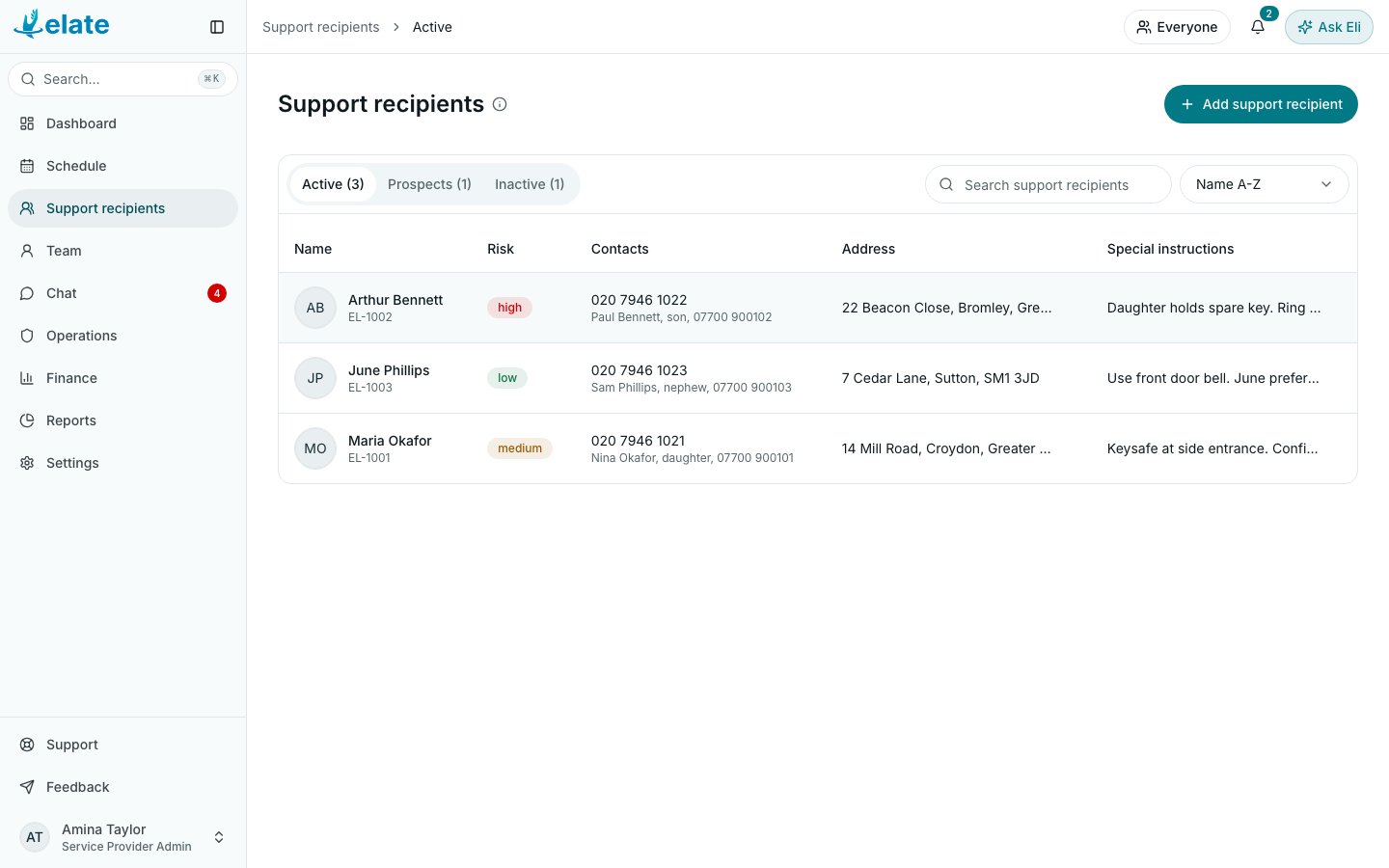
In Elate on the web, select Support recipients in the sidebar.
2
Start a new record
Select Add support recipient. A sheet opens with the essentials only.
3
Fill in what you know
Full name is the only field you must fill in. Reference starts as EL-NEW, so replace it with your own reference. Choose a Risk level: Low, Medium, High or Critical.The sheet also has date of birth, address, phone, email, GP, Pharmacy, Consent, Key-safe, Preferred name, Care summary, Access notes, Communication needs, Mobility notes, Funding type, Preferences and Emergency contacts. For the address, type in Find an address and pick a match, or fill in the address lines yourself.
4
Save
Select Create support recipient. The person joins the Active list.
Elate Free includes up to 3 active support recipients. Prospects are not counted. Plans and billing are managed in Elate on the web, under Billing in the profile menu.
The support recipients list
The list has three tabs, each with a count: Active, Prospects and Inactive. Use Search support recipients to filter the tab you are on, and the sort menu to order by name or by risk. Select a row to open the profile. For more on searching, see Finding people.The profile
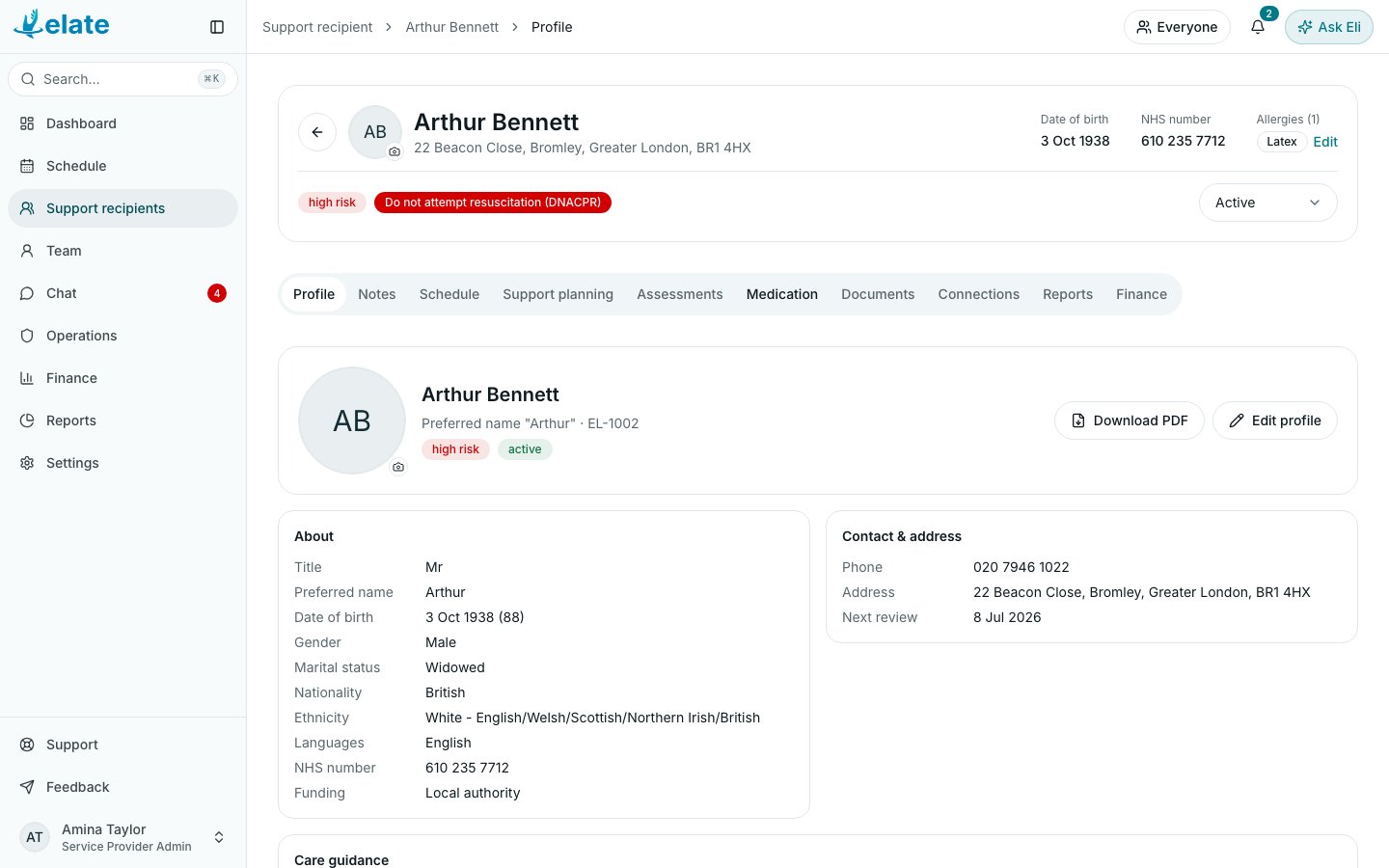
The header shows the person’s name and address, Date of birth, NHS number, their allergies, their risk level and their record status. Below it are the tabs:
You only see a tab your role can use. Assessments needs Assessments, Medication needs the eMAR module and Medication records, Reports needs Incidents or Safeguarding, and Finance needs Finance.
Edit the full record
1
Open the editor
On the Profile tab, select Edit profile.
2
Go to a section
Use the list on the left to jump to Personal, Contact & address, Care guidance, GP & pharmacy, Physical appearance, Preferences, Consent or Contract.
3
Save
Select Save profile. Everything on the page saves together. If you leave with unsaved changes, Elate asks whether to discard them.
Allergies
1
Open the allergies
In the profile header, select + Add allergy, or Edit if some are already recorded.
2
Add one
Select Add allergy. Only Allergy name is required. You can also record the Allergen, Allergen type, Reaction severity (Severe, Moderate or Mild) and a Description of reaction.
3
Save
Select Save. Severe allergies show in red in the header.
Record status
The menu at the right of the profile header sets the record status:- Active: receiving care.
- Prospect: not receiving care yet, for example while you assess them. You can still schedule visits for them.
- Inactive: no longer receiving care. See Archiving a support recipient.
Common questions
Can I import a list of support recipients?
Can I import a list of support recipients?
Not from a file. Add each person with Add support recipient.
I cannot see Add support recipient or Edit profile
I cannot see Add support recipient or Edit profile
Your role does not include Support recipients, or it can only view. Ask your organisation owner to check Settings > Permissions.
I added someone but cannot find them
I added someone but cannot find them
Check the tab you are on, clear the search box, and check for a banner that starts Showing: it means an active group is hiding everyone else. Select Show everyone.