

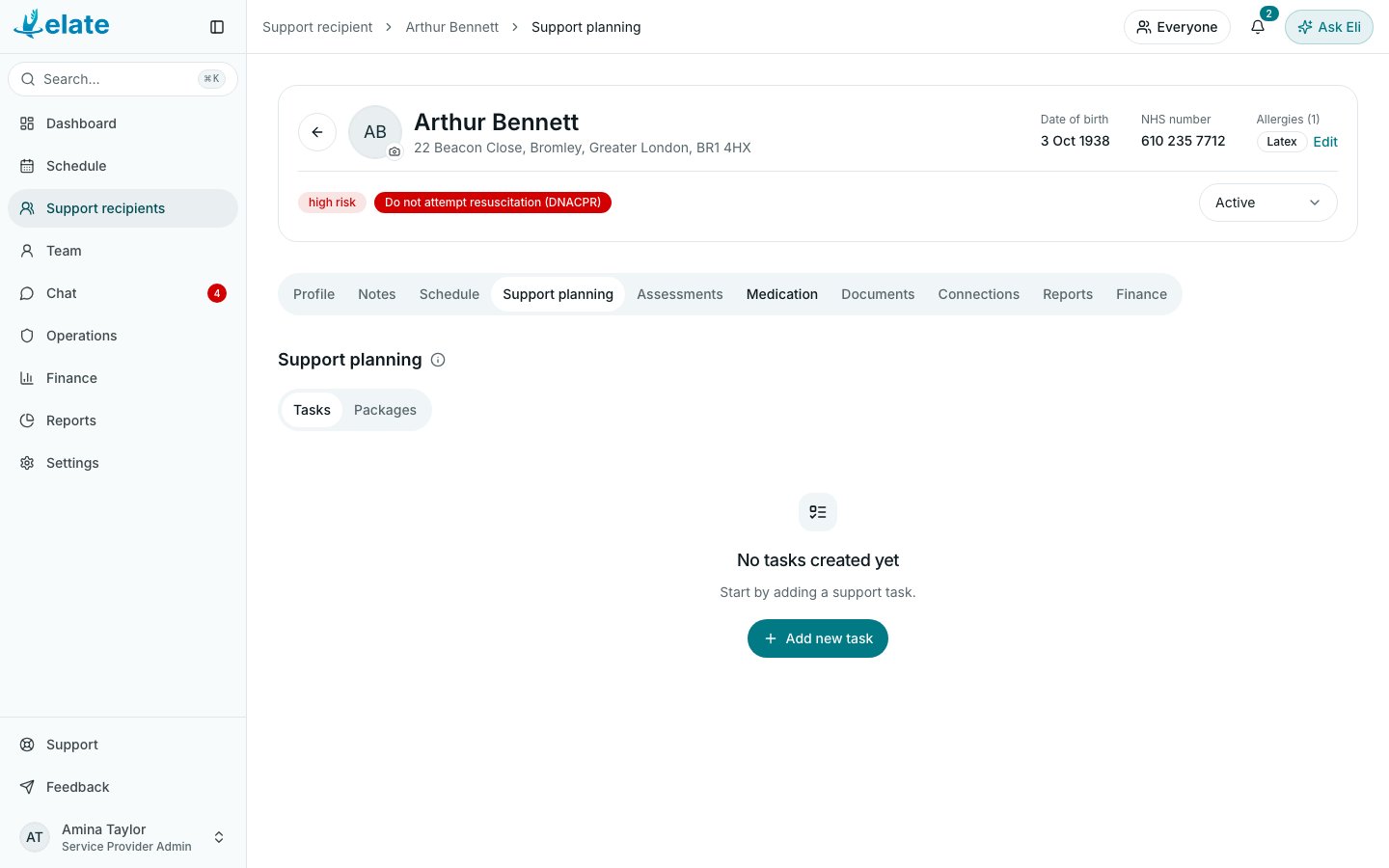
Where support planning lives
- For one person: open their profile and select the Support planning tab. It has two tabs of its own, Tasks and Packages.
- For the whole organisation: go to Operations and select Support planning. Tasks and packages here are organisation-wide templates you can copy onto people.
Add a task
1
Open Tasks
On the person’s Support planning tab, select Tasks.
2
Start a task
Select Create new task (or Add new task if there are none yet).
3
Describe it
Fill in Task title (required), a Description and, if you like, a Category (optional).
4
Note any risk
If the task carries a risk, tick This task has risk and fill in Risk and mitigation notes. The task then shows a Risk badge.
5
Save
Select Create task.
Build a package
1
Open Packages
On the Support planning tab, select Packages, then Create package.
2
Name it
Fill in Package name (required) and, if you like, a Description, a Priority (Low, Medium or High) and an Effective from date.
3
Pick the tasks
Under Select tasks, tick the tasks to include. Use Add new task to write one without leaving the sheet. Drag the selected tasks into the order the carer should follow.
4
Save
Select Create package.
Copy a package from the organisation library
On the person’s Packages tab, choose a template under Add from organisation templates and select Duplicate. The package and its tasks are copied onto the person, so you can change them without touching the template. From the library itself (Operations > Support planning), open a package’s Actions menu and choose Duplicate to recipient… to copy it onto someone.Find and manage tasks and packages
The filter pills show All, Scheduled, Unscheduled and Archived, each with a count. Scheduled means it is on a visit that has not happened yet. All leaves out archived items. Use the search box to find one by name. Each row has an Actions menu:- Create visit: opens a new visit for this person with the item ticked.
- Add to package (tasks only): adds the task to a package.
- Edit and Duplicate.
- Archive or Unarchive: takes it out of use without deleting it.
- Delete.
Change something that is already scheduled
When you edit a task or package that is on upcoming visits, Elate asks how the change should reach the schedule:1
Save the edit
Make your changes and select Save and choose where it applies (a task) or Save and apply changes (a package).
2
Choose when
Pick Now to update upcoming visits from this moment, or Choose date and time to start later.
3
Apply
Select Apply. To change the item without touching the schedule, choose Save, leave the schedule as it is (a task) or Save without changing the schedule (a package).