

This is not included in Elate Free.
Generate invoices
Each invoice covers one support recipient. Elate makes as many invoices as your selection needs.1
Select the visits
Go to Finance > Overview, filter to the completed, unbilled visits you want to bill and tick them. Then select Generate invoices. See Finance overview if a visit cannot be ticked.
2
Choose the invoice periods
The Generate invoices sheet says how many invoices it will create. Under Invoice periods, choose One selected period for one invoice per support recipient, or Split into calendar months for one per support recipient per month.
3
Choose how lines are grouped
Under Group line items by, choose Each visit, Day, Week or Month. It starts on your invoice template’s setting.
4
Set the dates
Issue date starts on today. Leave Due date override blank to use each invoice’s payment terms (see below), or pick a date to use instead.
5
Add the optional details
Add a Purchase order number and Notes if you need them. Include approved billable expenses adds approved expenses and mileage that were marked for the invoice. Tick Record as paid in full only if the money has already arrived.
6
Add manual lines if needed
Select Add manual line and fill in the description, Quantity, Unit price and VAT (%). Manual lines are added to every invoice in this batch. A negative price makes a discount. Leave VAT blank to use the invoice default.
7
Check the preview and generate
The Preview shows each invoice’s visits, hours, net, VAT, total and due date. These are estimates; the saved totals use the contract rates and template in force at generation. Select Generate 1 invoice (or Generate 2 invoices, and so on).
8
Open the new invoices
Links to the new invoices appear under Created invoices. Select Done to close the sheet.
How the due date is worked out
The due date is the issue date plus the payment terms, unless you set Due date override. Elate takes the payment terms from the first of these that applies:- The contract’s Payment terms (days).
- The funder’s Payment terms (days).
- The invoice template’s Payment terms (days), if the invoice uses a template.
- Default payment terms (days) in Settings > Branding, which is 14 days unless your organisation changed it.
Invoice statuses
Find an invoice
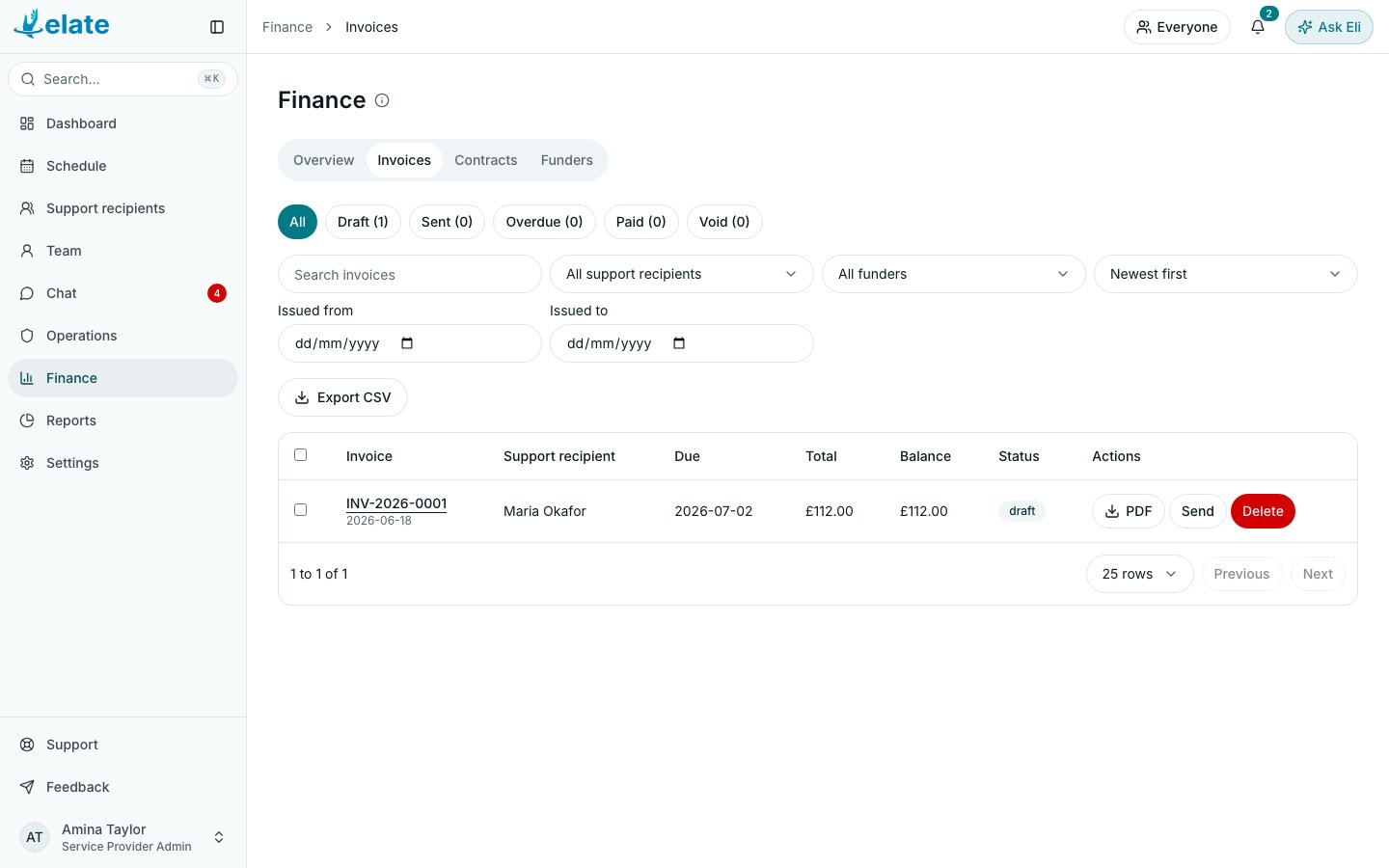
Go to Finance > Invoices. The status buttons (All, Draft, Sent, Overdue, Paid, Void) show a count each. You can also use Search invoices, filter by support recipient or funder, sort by Newest first, Oldest first, Invoice number or Highest total, and set Issued from and Issued to dates. Export CSV downloads the matching invoices, up to 5,000 rows, with totals, VAT, amount paid and balance. Select an invoice number to open the invoice. It shows the Line items, the totals, Payments, Notes and Activity. Under a line, open the details link (for example View 3 visit / expense details) to see the visits or expenses behind it.Send an invoice
1
Open the send sheet
Select Send invoice on the invoice, or Send on its row in the list.
2
Check the recipient
Recipient email is filled in with the funder’s billing email. When there is no funder, it uses the support recipient’s email. Change it if needed. There is one main recipient.
3
Add copies and a message
Put any other addresses in CC emails, separated by commas (up to 20). Check the Subject and write a Message if you want one.
4
Send
Leave Attach invoice PDF ticked to attach the PDF. Select Send invoice.
Record a payment
1
Open the invoice
Select Record payment.
2
Enter the payment
Amount (GBP) starts at the balance due (the invoice’s currency shows in brackets). Change it for a part payment. Set the Payment date, the Method (Bank transfer, Card, Cash, Cheque or Other) and an optional Reference.
3
Save
Select Record payment. The balance updates. When payments add up to the total, the invoice becomes Paid.
Add a line to a draft
Only an unpaid draft can take new lines. Open it, select Add line, fill in Description, Quantity, Unit price (GBP) and VAT rate (%), then select Add line item. A negative unit price is a discount. Leave VAT blank to use the invoice default.Open the PDF
Select PDF on the invoice or its row. The PDF opens in a new tab.Void or delete an invoice
Both ask for a Reason before you confirm. To act on several at once, tick them in the list and select Void selected or Delete selected. If an invoice has payments, delete the payments first.
Common questions
Can I change a sent invoice?
Can I change a sent invoice?
No. Once an invoice is issued, its details are fixed. Void it, which returns its visits to billing, then generate a new one.
Why can I not delete this invoice?
Why can I not delete this invoice?
Only unpaid drafts can be deleted. Void a sent invoice instead, so its number stays in your records.
Generation says this funder requires a purchase order number
Generation says this funder requires a purchase order number
The funder is set to need a purchase order. Enter one in Purchase order number on the sheet, or add it to the contract.
Generation says to set an effective contract rate
Generation says to set an effective contract rate
One of the visits has no care rate on its date. Add or fix a rate on the contract. See Contracts and rates.
Why are some expenses missing from the invoice?
Why are some expenses missing from the invoice?
Only approved expenses that were marked for the invoice are added, and only when Include approved billable expenses is ticked. See Expenses and mileage.
Related pages
Finance overview
Review and select billable visits.
Funders and invoice templates
Bill-to details, numbering, VAT and terms.