

This needs the AI features module. If you cannot see it, ask your organisation owner. The Elate team turns the module on for your organisation. Your organisation owner can switch AI features off in Settings > AI.
This is not included in Elate Free.
Your organisation may use different words for some things, such as “Service users” instead of “Support recipients”. Elate shows your organisation’s words everywhere, so follow what you see.Eli is only in Elate on the web. It is not in the Elate Care app. If your role does not have AI features, the Ask Eli button does not appear. On Elate Free, the button shows a padlock and explains that Eli needs a subscription.
Ask a question
1
Open Eli
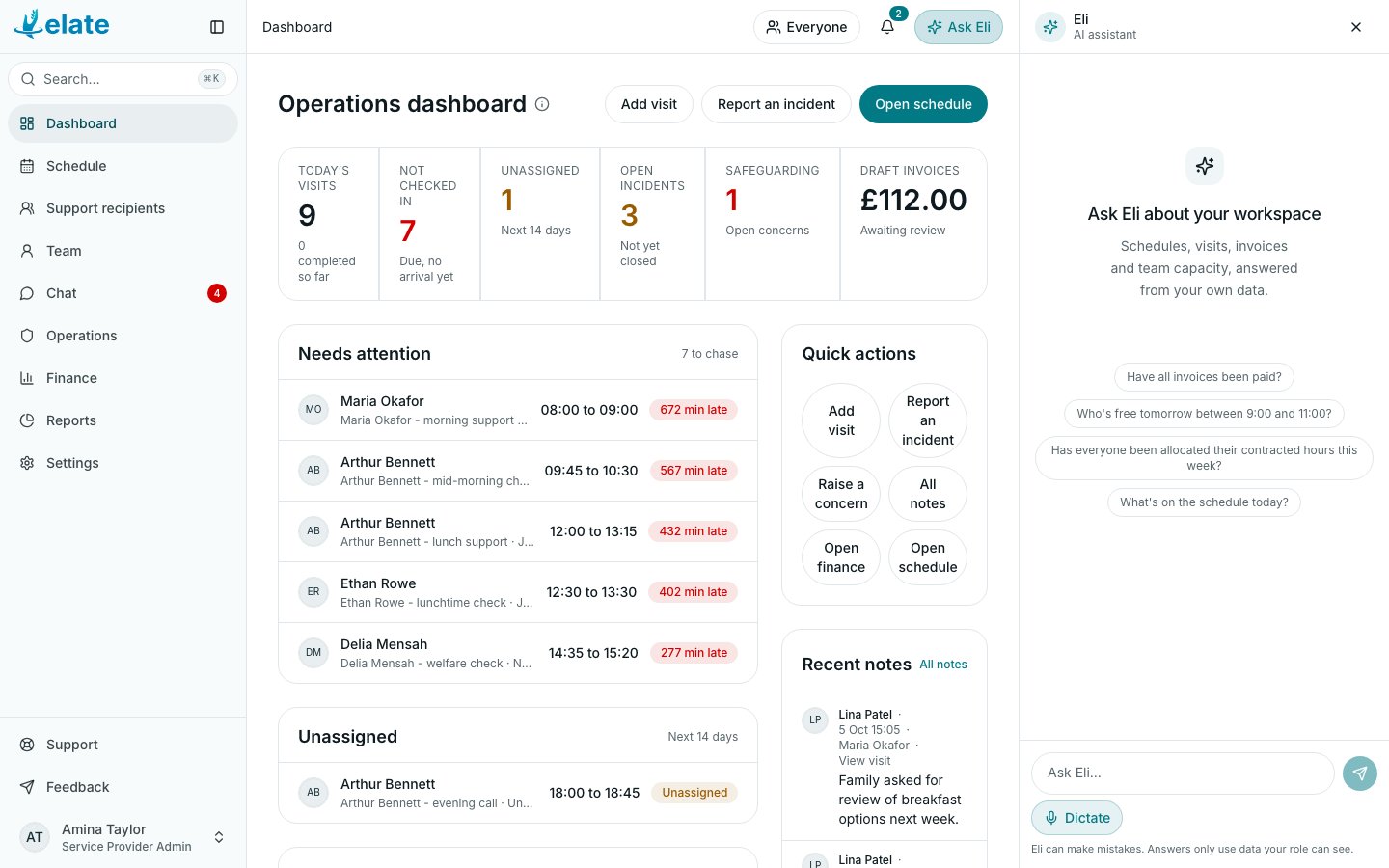
Select Ask Eli at the top of any page, or press Ctrl+J (⌘J on a Mac). Eli opens beside the page, or from the bottom of the screen on a smaller screen.
2
Ask
Type in Ask Eli… and press Enter, or pick a suggested question such as “What’s on the schedule today?” or “Who’s free tomorrow between 9:00 and 11:00?”.
3
Read the answer
Eli shows what it is checking, such as Looking at the schedule, then answers. It may link to the page where you can see more.
What Eli can answer from
Eli answers from your own data, and only the data your role can see. For example:- Visits on a day or across up to two weeks, with times, status and who is assigned
- Who is free at a given time
- Whether everyone has been given their contracted hours this week
- Unpaid invoices, and visits compared with contracts
Ask how to use Elate
Eli also answers questions about Elate itself, such as “How do I check in to a visit?”, “Where do I set quiet hours?” or “What does Missed mean?”. It reads the pages of this help centre, gives you the steps in its own words, and ends with a link to the page it used. The link opens the help centre in a new tab.- Eli uses the help centre that matches the version of Elate you are using, so the steps are current.
- If a page describes something your role cannot do by default, or something your organisation does not have (such as the Medication (eMAR) module, or a feature not in Elate Free), Eli says so first and tells you who can.
- If your organisation has renamed things in Settings > Terminology, Eli uses your organisation’s words.
- Eli knows which page of Elate you have open, so “how do I do this?” on the schedule gets a schedule answer.
- If the help centre has no page for your question, Eli says so. Ask whoever manages Elate in your organisation, or email the Elate team at info@elateuk.com.
Making changes with Eli
When the Elate team has switched this on for your organisation, Eli can also prepare changes for you. Eli only offers a change when you ask for one, for example “reassign Jo’s 9:00 visit to Sam” or “add a care note for Mrs Patel”. It never makes a change on its own.1
Ask for the change
Say what you want changed.
2
Check the card
Eli shows a card with exactly what will change.
3
Confirm or cancel
Select Confirm to make the change, or Cancel. If you cancel, you see Cancelled. Nothing was changed.
For sensitive details, such as date of birth, NHS number or risk level, and for any allergy change, Eli asks for your reason first.
To undo a change Eli made, ask Eli to undo it. It shows an Undo a confirmed change card for you to confirm. Later edits can stop an undo.
What Eli will not do
Eli cannot:- Change resuscitation status (DNACPR)
- Change roles, permissions or a team member’s app role
- Change AI settings
- Send or delete invoices
- Send team invitations
- Delete records
- Change an incident’s status, close an incident or send statutory notifications
Messages you might see
- Eli has reached today’s usage limit for this organisation. It resets tomorrow.
- That took too long. Try a narrower question.